Stay Connected with
the Findo Mobile Tracker
Never lose track of your friends and family with Findo’s real-time location tracker.


Trusted by millions
8.8M+
Users
protected
protected
1.5M+
SOS
alerts sent
alerts sent
400K+
Children
safeguarded
safeguarded
Put your location tracker to work
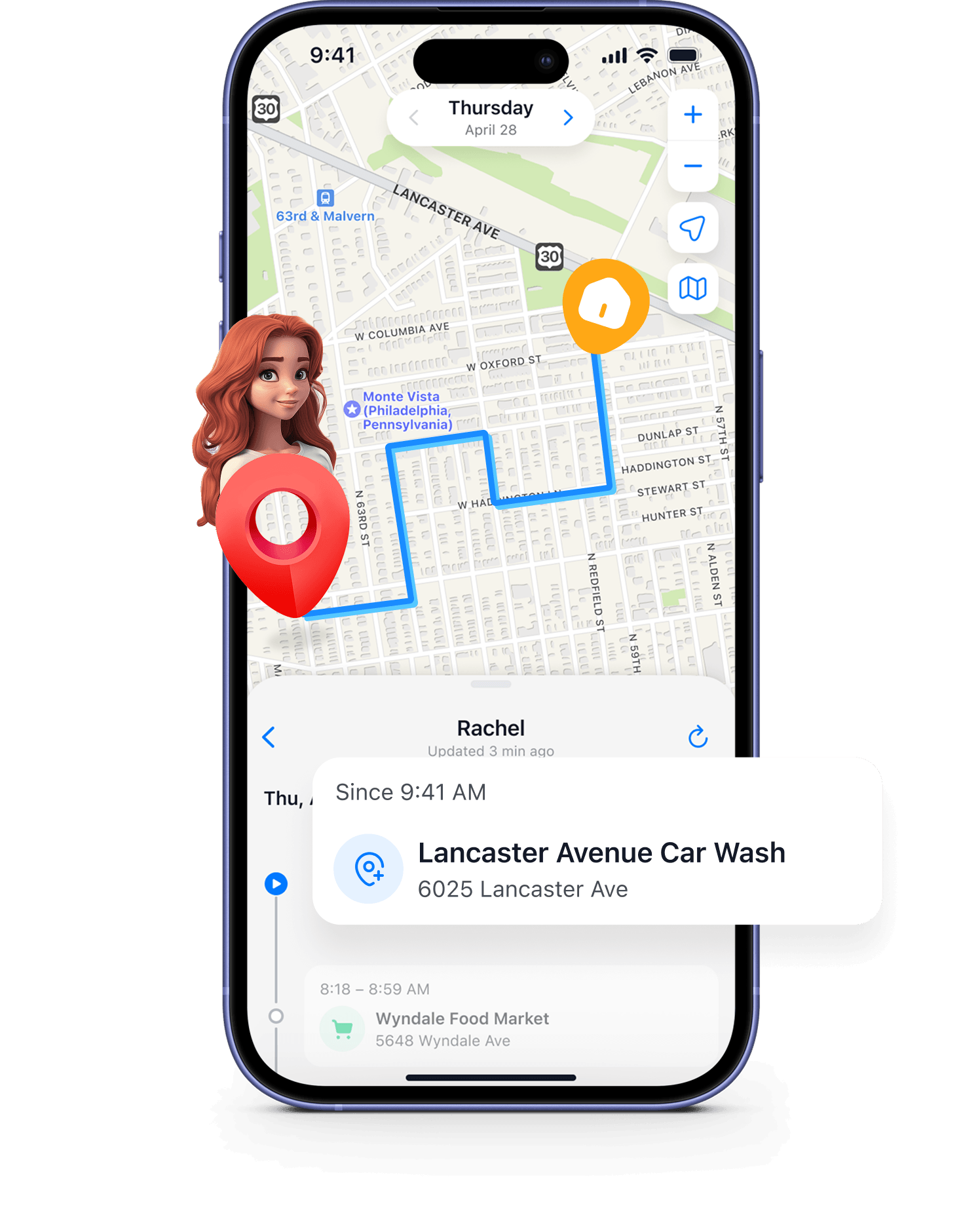
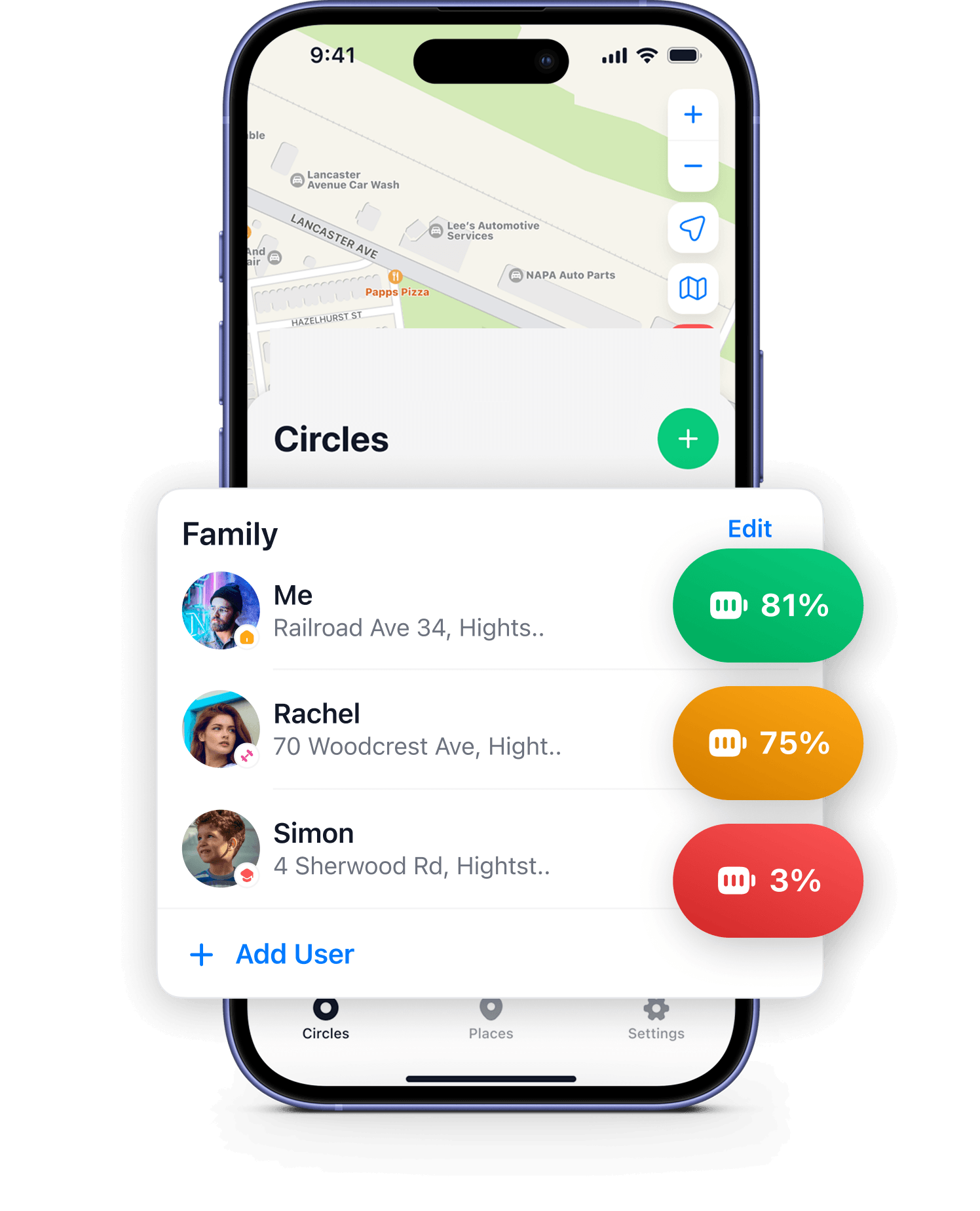
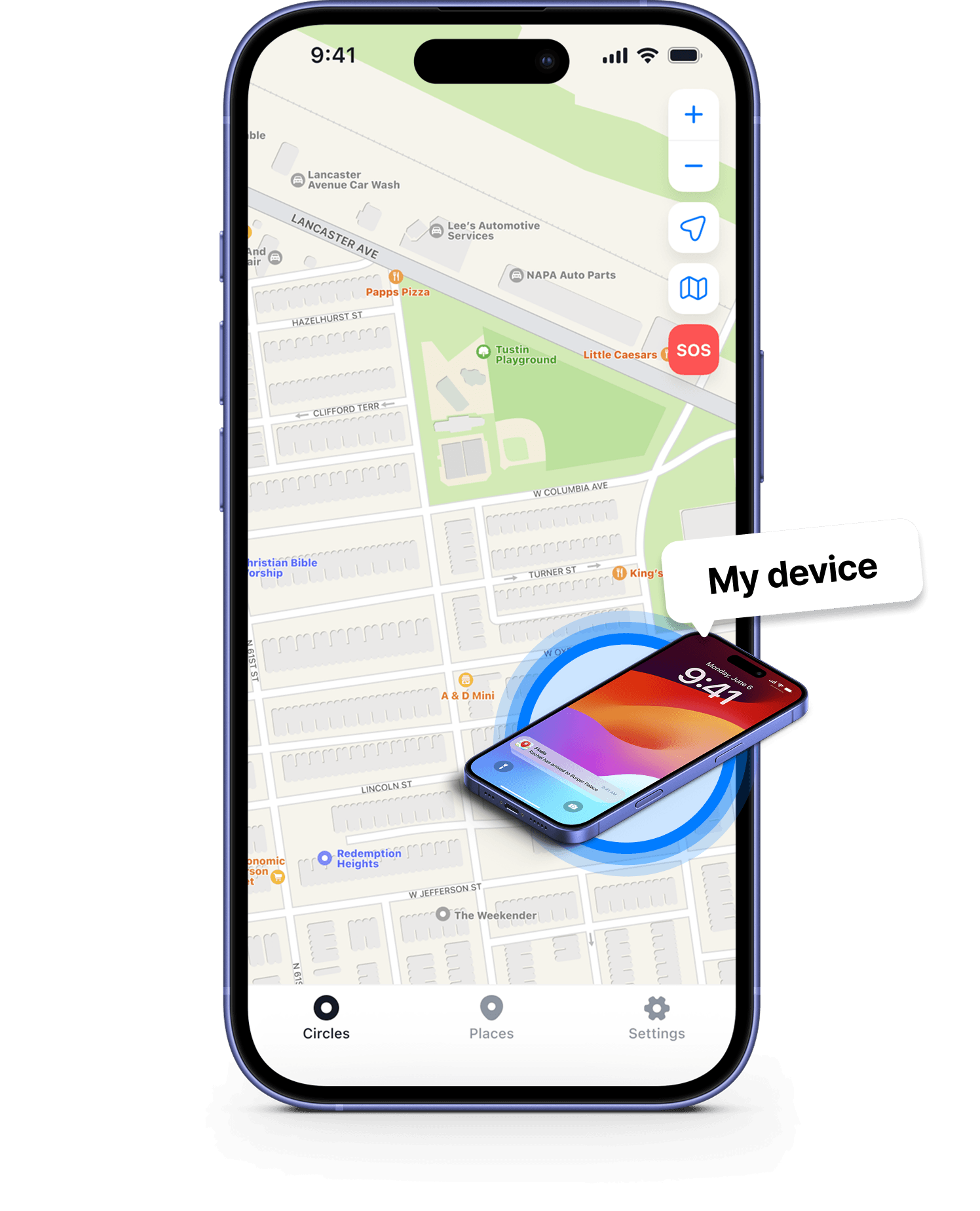
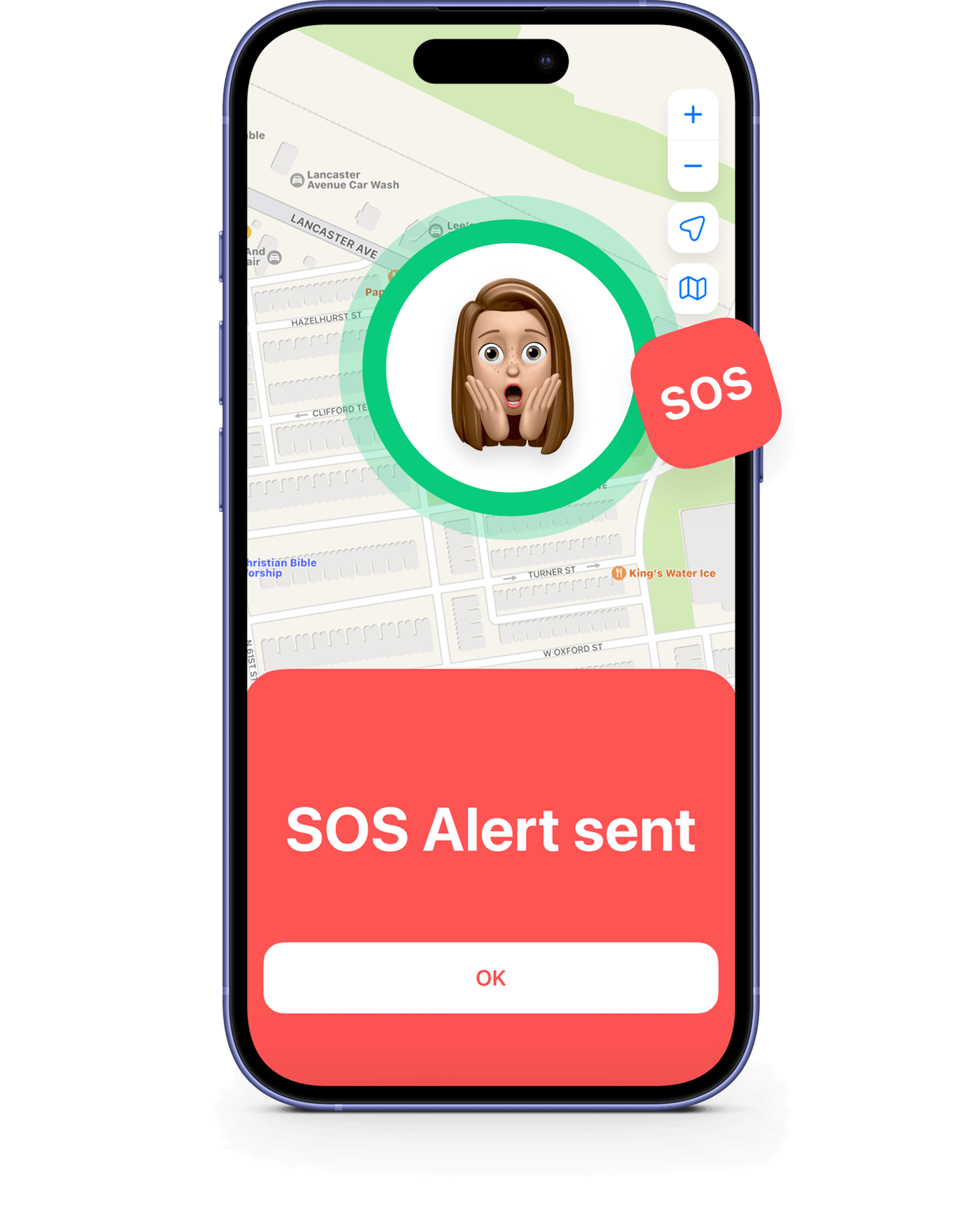
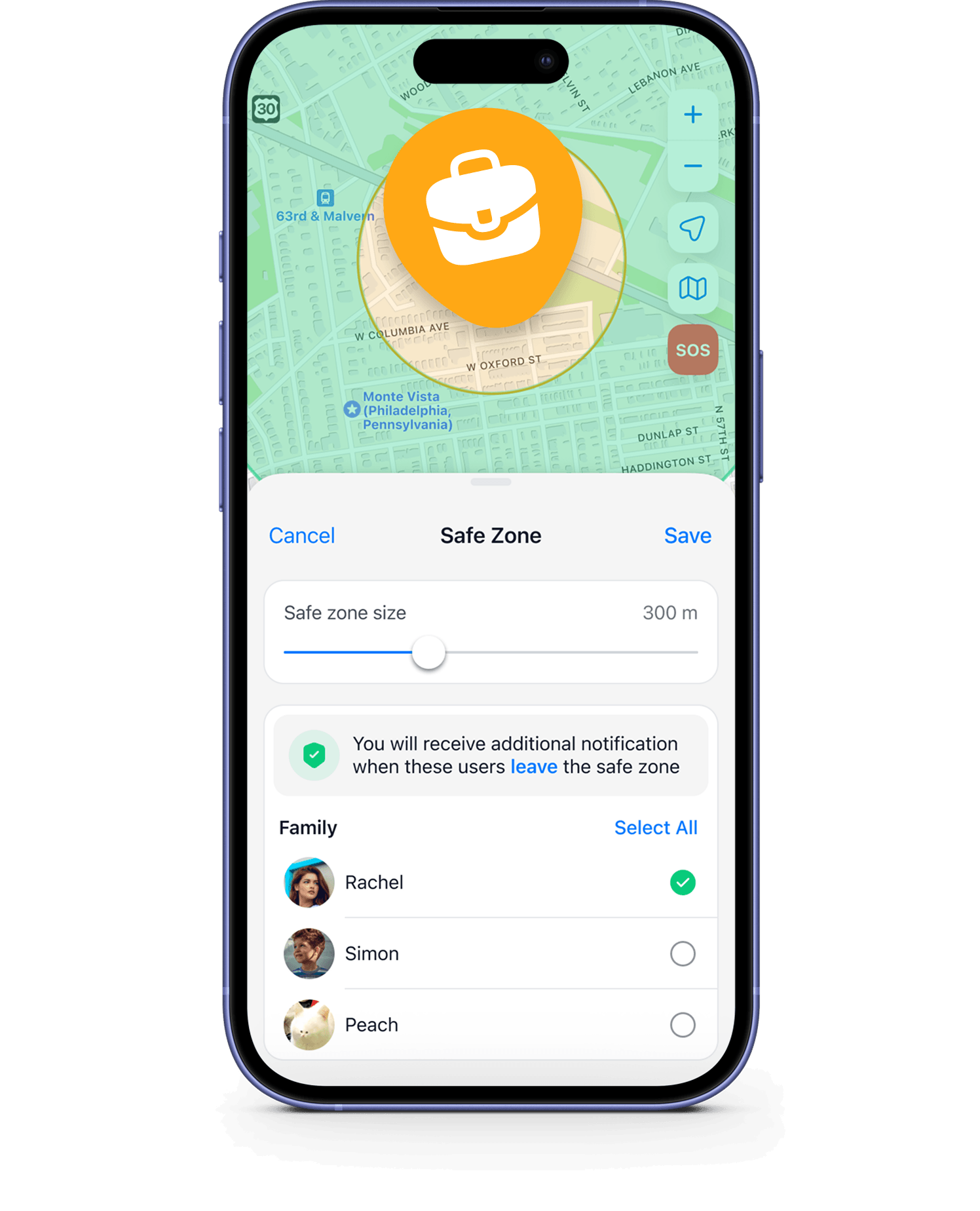
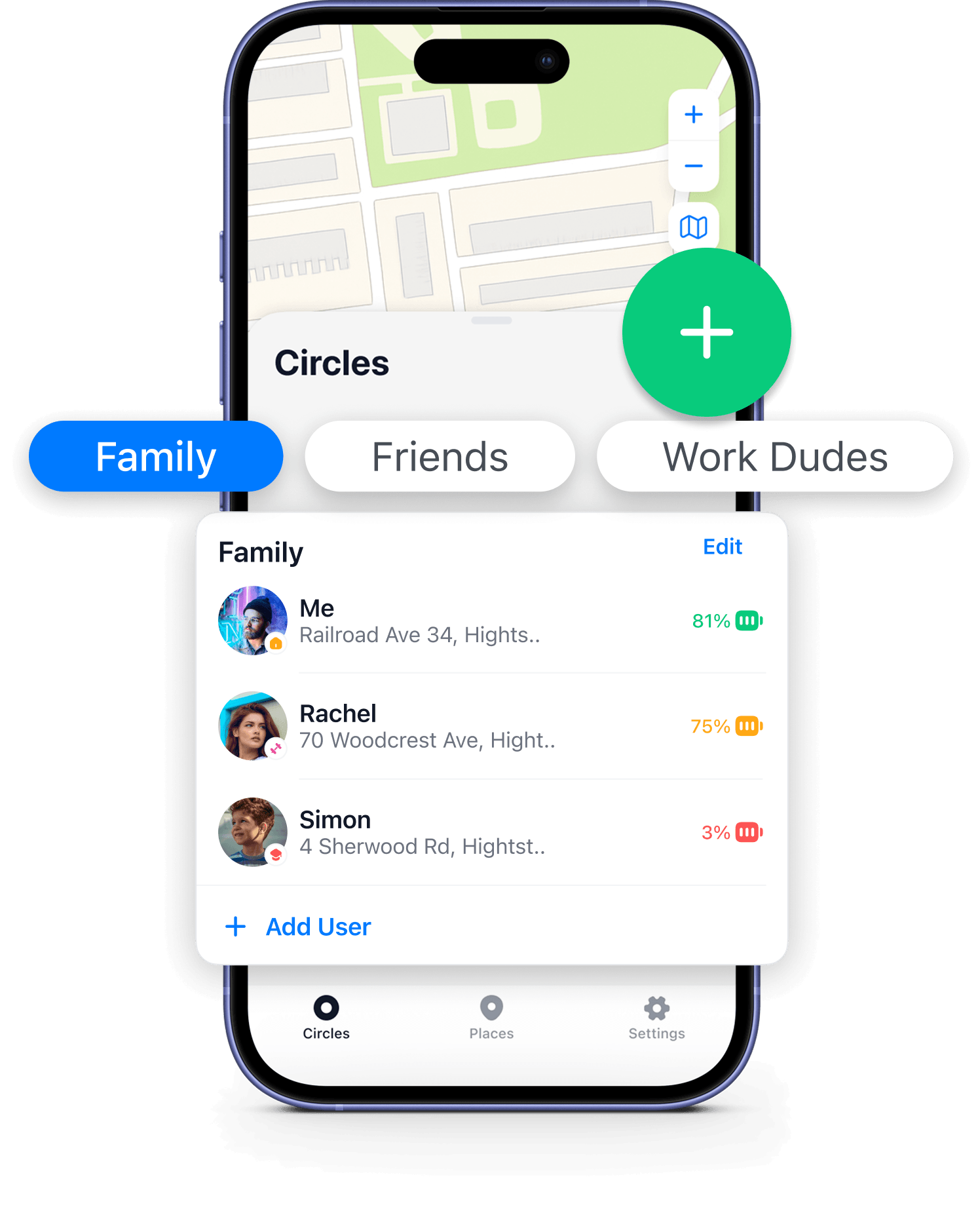
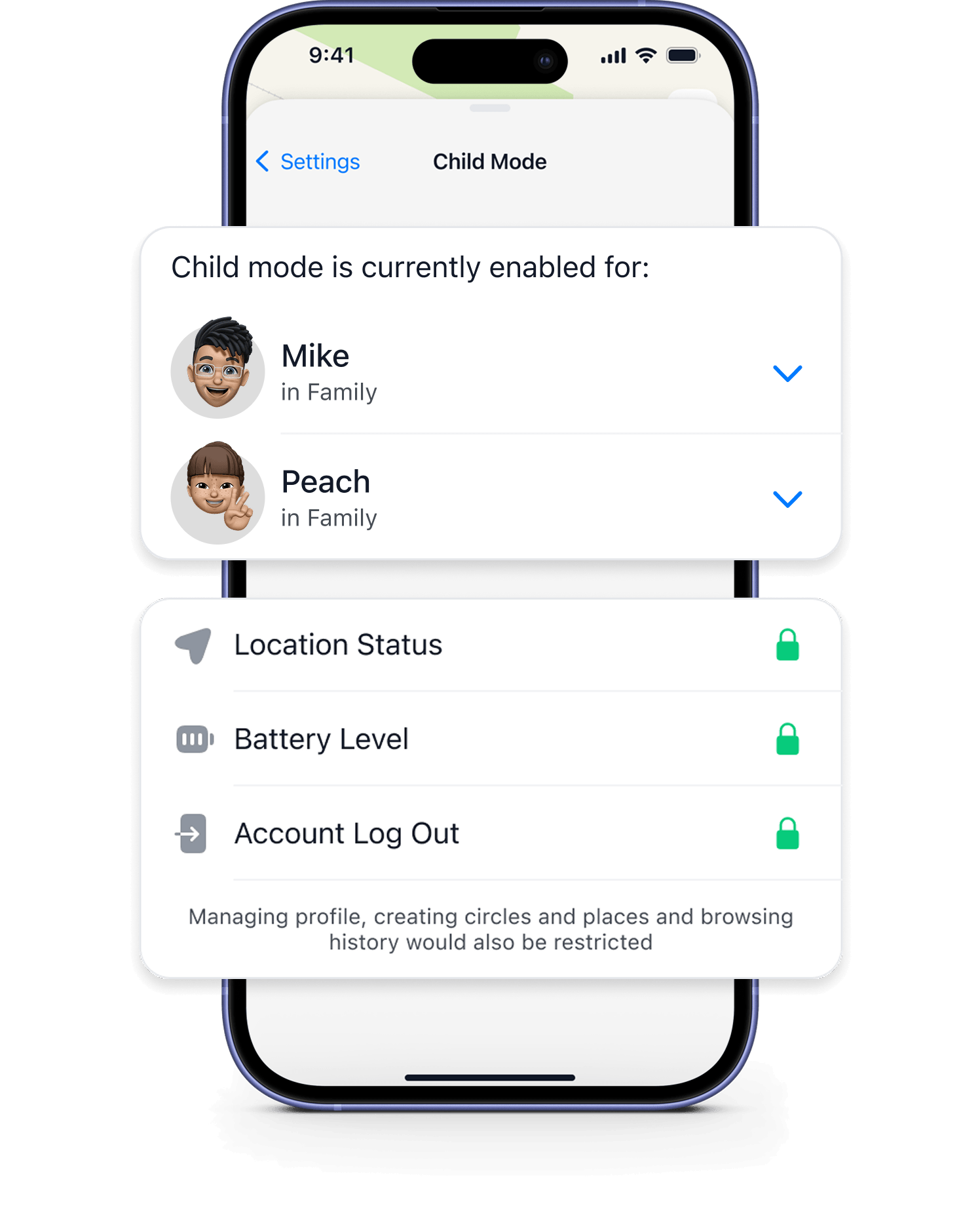
Findo location tracker: Get started
Protect the people you love in 3 easy steps




FAQ
How do I create circles?
Your first circle is created automatically when you sign up. To create another, go to the Circles tab and tap the “+” icon. Please note that creating additional circles may require a subscription.
How do I join a circle?
You’ll need a unique invitation code from the circle’s owner. Once you have it, go to the Circles tab, tap “>”, and enter the code to join.
How do I edit circles?
To edit a circle, find it in your list on the Circles tab and tap “Edit.” From there, you can change its name, its color, or even delete it (if you’re the owner).
How do I switch between circles?
Go to the Map tab and tap on the name of your current circle at the top. A list will appear for you to select a different circle to view.
How can I add places?
Go to the Places tab to add a new location and adjust the notification zone. All places are added to your currently active circle, so make sure you’ve selected the right one first.
How can I view the travel history of a circle member?
On the Map tab, simply select a member’s name from the list. You will then be able to browse their shared travel history.
Can other circle members invite people to my circle?
Yes, any member of your circle can invite others by sharing the circle’s unique invitation code.
Can I add a person who doesn’t have the app installed?
To join a circle, they will need to have the app installed. You can send them an invitation, which includes a link to download the app.